> For the complete documentation index, see [llms.txt](https://connectyai.gitbook.io/documentation/llms.txt). Markdown versions of documentation pages are available by appending `.md` to page URLs; this page is available as [Markdown](https://connectyai.gitbook.io/documentation/usage-guides-enterprise-plan/context-engine/context-graph.md).
# Context Graph
### 1. Overview
#### 1.1 What is the Context Graph?
The **Context Graph** is a visual breakdown of how Connecty AI interprets and answers natural language questions. It reveals the underlying logic used to compute a metric, in a clear, interactive format.
Rather than giving you a black-box answer, the Context Graph exposes the **building blocks** behind each result. You can see:
* What **metric** was calculated
* What **data elements** were used
* How everything is **logically connected**
It’s not just a diagram — it’s an **interactive map of your business logic**. Whether you're a data analyst validating results or a business user trying to understand the calculations for number, the Context Graph gives you full visibility.
{% hint style="success" %}
Navigate from a specific question or metric — this way, you’ll immediately see the logic behind something relevant.
{% endhint %}
#### 1.2 How the Context Graph works
When you ask a question (let's say: "*What’s the profit margin from top 10 suppliers in Asia?*”), the platform doesn’t just provide an answer. It activates the **Context Engine**, which maps your question to a set of pre-defined business logic components.
The **Context Graph** then displays that logic visually and behind the scenes does the following:
* Identifies the **metric** you're asking for (e.g. *profit margin*)
* Determines the **subject** it belongs to (e.g. *supplier performance*)
* Locates the required **attributes** (e.g. *cost*, *revenue*)
* Applies relevant **filters** (e.g. *region = Asia*, *top 10 suppliers*)
* Segments by **dimensions** (e.g. *supplier name*)
* Calculates the final **measure** (e.g. *profit margin ratio*)
{% hint style="info" %}
If two components are connected, there’s a reason. Follow the links to understand how metrics are constructed step by step.
{% endhint %}
#### 1.3 Where to find it
You can access the **Context Graph** from the **Context Engine** section.
To open it:
1. Click the **Context Engine icon** in the left sidebar.
2. In the dropdown menu, select **Context Graph**.
#### 1.4 Continuously Updated and Learning
The Context Graph is not a static diagram. It continuously refreshes as Connecty AI learns from new usage and evolving definitions across your workspace.
As your team runs new queries, introduces new KPIs, or refines existing logic, Connecty AI updates the underlying semantic understanding and reflects those changes in the graph. This ensures what you’re inspecting matches how the system is reasoning **right now**, not how it reasoned at initial setup.
The Context Graph can evolve over time by:
* **Adding newly discovered metric entities** (new measures, filters, dimensions, or derived KPIs inferred from recent usage)
* **Consolidating duplicates and synonyms** (e.g., multiple names or variants of the same KPI resolving to a governed definition)
* **Updating relationships and dependencies** when join paths, upstream attributes, or formulas change
* **Reflecting edits immediately** when nodes are updated via SmartNode Editor (with change tracking and governance workflows)
If you notice new nodes appearing or connections shifting, it typically means the platform has detected new logic patterns, reconciled existing definitions, or applied verified changes — keeping the Context Graph aligned with your most current business logic.
### 2. Graph components
#### 2.1 What’s shown in the Graph
The **Context Graph** visualizes all the components that contribute to how a metric is defined and computed in Connecty AI. Each component appears as a **node** on the graph, and together they show the complete logical path from raw data to final answer.
Here’s what you’ll typically see:
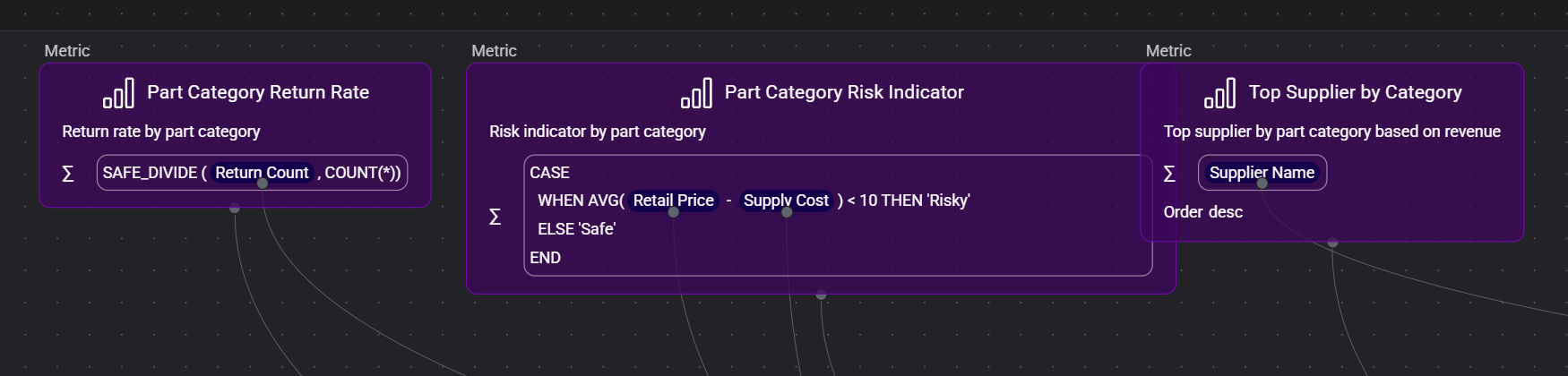
* **Metric nodes** – The main outcome being measured (e.g., *Profit Margin from Top 10 Suppliers in Asia*)
* **Subject nodes** – The broader business topic the metric belongs to (e.g., *Profit per Part*, *Supplier Revenue*)
* **Attribute nodes** – The raw data inputs, like *cost*, *revenue*, *quantity*, or *supplier name*
* **Dimension nodes** – Fields used to segment the metric, such as *part type*, *supplier key*, or *region*
* **Filter nodes** – Conditions that refine the dataset, like *Top 10 Suppliers* or *Region = Asia*
* **Measure nodes** – Final formulas or aggregations, such as *Total Revenue*, *Average Discount*, or *Profit Margin Ratio*
Each node contains a label, often with a short explanation, and in many cases includes technical logic (e.g., `SUM(revenue - cost)`).
The graph shows **multiple metrics at once** if needed, helping you visualize reuse of components across different KPIs — for example, how the same measure might feed several metrics, or how a dimension is reused in multiple breakdowns.
When you **double-click on a graph element** — Connecty AI opens the **Component Inspector** in a new panel.
{% hint style="info" %}
Nodes can be directly edited using the [SmartNode Editor](https://app.gitbook.com/o/FrCiSVMNL89AB8xeVJFA/s/MVGgoc4urxfCJy9iAJG7/~/changes/222/usage-guides/context-engine/context-graph#id-3.2-node-editing), making the graph not only a visualization tool but also an editing interface.
{% endhint %}
#### 2.2 How elements are connected
The Context Graph doesn’t just show a one-directional path from inputs to outputs — it reveals a **dynamic web of relationships** across layers of business logic. Here are described advanced ways elements connect inside the graph.
🔄 **Components can be reused in multiple contexts**
A single node may connect to **several different metrics**, **custom logic** or **aggregate outputs**. This reuse ensures consistency across your workspace but also creates **complex dependency chains** that the graph helps you visualize.
For example:
* *Supply Cost* as an attribute may feed both *Total Supply Cost* and *Profit* metrics.
* *Retail Price* may be part of different logic blocks, reused across multiple business questions.
***
🧱 **Connections can happen between non-metric nodes**
Not all connections lead to or come from a metric. In fact, many links in the graph:
* **Bridge filters and dimensions**\
(e.g. a *Top 10 Suppliers* filter connected to a supplier key dimension)
* **Connect measures to custom expressions**\
(e.g. *Profitability Ratio* using *Revenue* and *Cost* measures)
* **Tie attributes directly to dimensions**\
(when they share the same field but serve different purposes in logic)
This multi-directional linking gives you a **true lineage view**.
{% hint style="danger" %}
Not all connections are one step away — a measure may depend on an attribute through an intermediate logic block (like a custom formula). Zooming out can help you catch these multi-hop dependencies.
{% endhint %}
***
**🧠 Relationships reflect logic, not just schema**
Unlike traditional data tools, Connecty AI's Context Graph captures **semantic relationships**, not just foreign key joins. It visualizes:
* Business rules (e.g. revenue logic)
* Applied transformations (e.g. formulas in custom measures)
* Filtering intent (e.g. market-specific views or exclusion criteria)
This is critical when debugging or validating results because you’re seeing **how the AI interpreted the intent**, not just which tables were touched.
{% hint style="danger" %}
A large or dense graph doesn’t mean the dataset is large — it means the logic is layered or modular. Use it to assess metric complexity before investing time into debugging or explaining it.
{% endhint %}
#### 2.3 Context Graph or Metricverse?
While both the Context Graph and Metricverse expose the logic behind metrics in Connecty AI, they serve different roles in the user journey.
**Entry point vs. exploration mode**
* Metricverse is often the **starting point** when reviewing a metric — you use it to scan component definitions, check tags or logic and inspect status flags like verification or PII.
* Context Graph is a **deep dive tool** used once you want to understand how everything fits together. It’s often accessed after reviewing a component in Metricverse or navigating from a metric answer.
**Flat vs. relational understanding**
* Metricverse provides a **flat, categorized view** — organized into tabs like Metrics, Measures, Filters, etc. Relationships between elements are implied, but not visible.
* Context Graph exposes **explicit relationships** — showing which attributes feed into which measures, how filters are applied and how components are reused across metrics.
**Ideal use cases**
* Use Metricverse when your goal is to **review** or **search** metadata (like descriptions or ownership tags).
* Use Context Graph when your goal is to **understand** dependencies, **investigate** logic paths or **validate** trust in how a result was generated.
{% hint style="success" %}
The Context Graph shows how things are connected, while Metricverse shows what's inside each thing. Use both to get the full picture.
{% endhint %}
### 3. Graph interface
#### 3.1 Layout and navigation
When you open the graph, you’ll see:
* **Nodes** representing each component (e.g. metrics, attributes, filters, measures, dimensions)
* **Relationship lines** connecting those nodes, showing how logic flows between them
* **Clusters** forming around shared elements — for example, multiple metrics pulling from the same measure
***
The layout automatically adjusts based on the complexity of the graph:
* **Small graphs** are tightly centered and easy to scan.
* **Large graphs** automatically fan out to reduce overlap and maintain readability.
***
You can freely move around the canvas using standard navigation controls:
* **Click and drag** anywhere on the canvas to pan across the graph
* **Scroll to zoom in and out**, giving you both a bird’s-eye view and detailed inspection
* **Click on nodes** to center and highlight specific logic paths
{% hint style="warning" %}
The graph doesn’t follow your physical database structure. Nodes are arranged based on logical relationships, not table hierarchy or schema order.
{% endhint %}
#### 3.2 Node editing
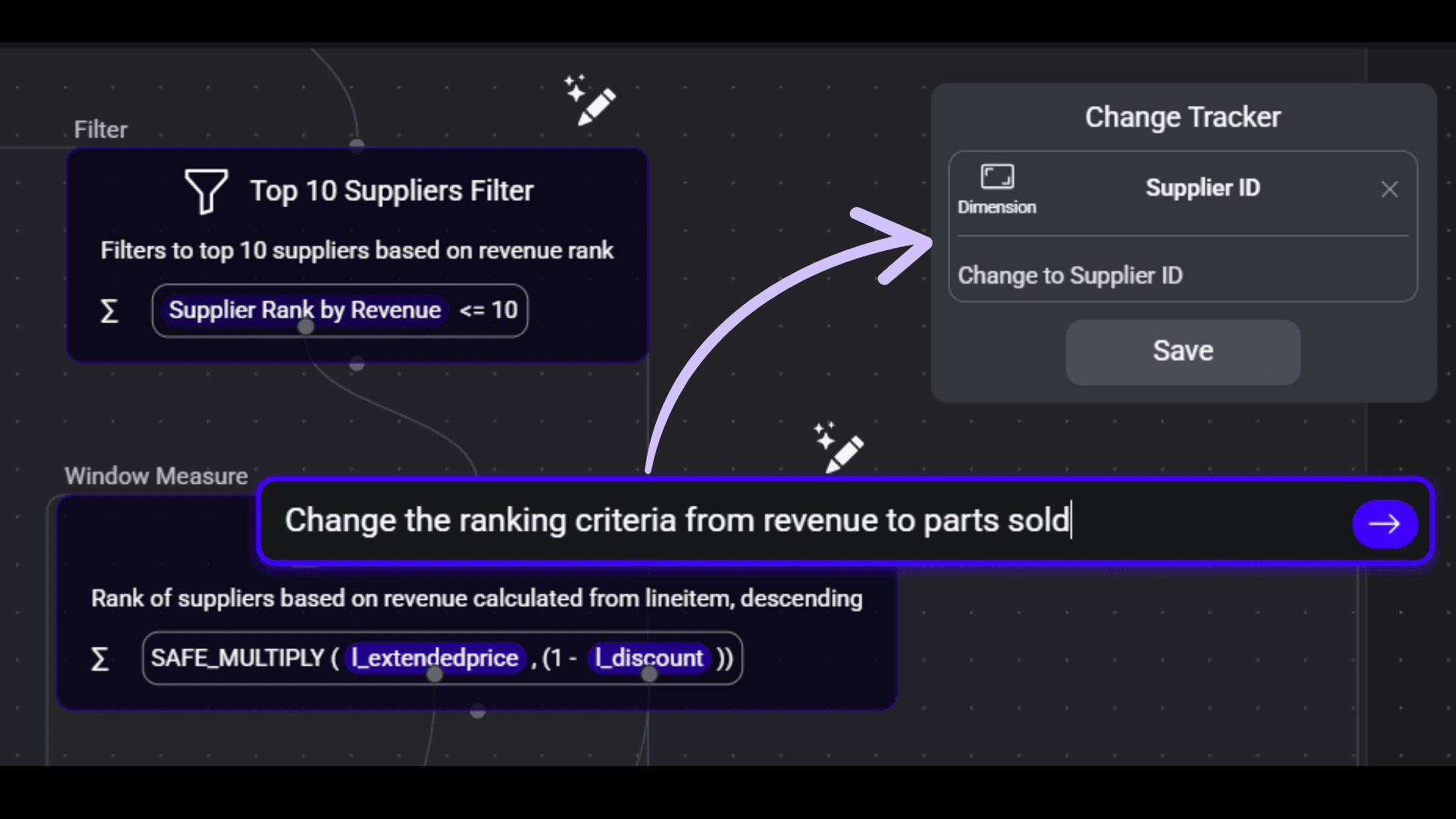
The **SmartNode Editor** allows users to edit nodes directly in the Context Graph interface, using natural language.
**How it works:**
* **Select a node** – Click on any relevant node in the graph you want to edit.
* **Enter instructions in plain language** – For example: *“Change profit margin calculation to exclude shipping costs”* or *“Rename supplier region to market area.”*
* **AI applies precise updates** – Connecty AI automatically adjusts joins, dependencies and related definitions, keeping logic consistent across the graph.
* **No restarts required** – Edits apply in place and the context refreshes immediately.
* **Change tracking** – Every modification is logged, so users can review, verify or revert edits if needed.
{% hint style="info" %}
When editing a node, phrase your instruction as if you were explaining it to a teammate (e.g., *“exclude returned orders from revenue”*). Clear, natural language gives the AI more context and helps it apply the right logic changes automatically.
{% endhint %}
#### 3.3 Display controls
The Context Graph provides a set of **interactive toolbar controls** on the left side of the screen to help you manage graph visibility and layout.
**➕ Zoom In / ➖ Zoom Out**
Use the `+` and `–` icons to zoom in or out incrementally:
* Ideal for zooming closer to a dense cluster of nodes or stepping back for a high-level overview.
* Unlike scroll-wheel zooming, these buttons give you more precise control over scaling.
{% hint style="success" %}
On large graphs with many connections, using the zoom buttons is often more stable than relying on scroll-wheel zooming, which can jump too far.
{% endhint %}
***
**🔲 Fit View**
Click the **"Fit View"** (box icon) to automatically adjust the zoom level so that **all visible nodes** fit neatly within your screen.
* Great for reorienting yourself after navigating far into one section.
* Especially useful when viewing complex or overlapping logic.
***
**🔒 Toggle Interactivity**
The **lock icon** is used to toggle interactivity:
* When **unlocked**, you can reposition and move individual nodes manually.
* When **locked**, the layout remains fixed, which is helpful when inspecting without accidentally dragging components around.
{% hint style="success" %}
When the graph is locked, you can’t move nodes — but you can still zoom, pan, and click to explore.
{% endhint %}
***
#### 🧵 Toggling relationship lines
While not part of the left toolbar, the graph also allows you to toggle **relationship lines**:
* This feature hides or shows the lines connecting nodes (e.g. metric → measure → attribute).
* Useful in dense graphs, where too many lines can obscure individual node content.
* Turning lines off helps isolate specific elements for focused review.
***
#### 🗺️ Minimap
In the bottom-right corner of the graph, you’ll see a **minimap** appear when navigating large or zoomed-out graphs:
* It displays a full overview of the entire graph canvas.
* A highlighted box shows your current view area — drag it to move around quickly.
* Great for jumping between clusters of logic without losing orientation.
{% hint style="info" %}
If something seems missing from your view, check the minimap — components like reusable filters or attributes may appear on the edge of the canvas.
{% endhint %}
### 4. Benefits
#### **4.1 Immediate visibility into metric logic without manual effort**
Users don’t need to write documentation or maintain diagrams — Connecty AI **automatically generates** a visual map of how a metric is built. This saves time and eliminates dependency on data teams to explain or trace logic manually.
***
#### **4.2 Clear detection of reused components across metrics**
Because the graph visualizes connections, users can easily:
* See if the same attribute (e.g. `ps_supplycost`) feeds into multiple measures or metrics
* Spot if a filter or measure is reused in other logic blocks
This helps prevent duplication and reduces inconsistencies across similar metrics.
***
#### **4.3 Fast validation of logic structure by non-technical users**
Even users without SQL or BI experience can:
* Understand what fields, filters and formulas contributed to a result
* Spot inconsistencies or missing logic by looking at the graph
This increases adoption across business users and reduces interpretation errors.
***
#### 4.4 **Accelerated troubleshooting when results are questioned**
If a metric result looks off, users can:
* Open the graph and trace its upstream logic
* See if a filter was unexpectedly applied
* Verify which version of a measure or attribute was used
This significantly speeds up **root cause analysis** compared to navigating through layers of dashboards or code.
***
#### 4.5 **Shared understanding of how metrics are constructed**
In team environments, the Context Graph:
* Acts as a **single source of truth** about metric construction
* Helps avoid misunderstandings between analysts, PMs, and executives
* Replaces fragmented documentation with **live, visual logic**
This promotes alignment and consistency in how teams talk about and use data.