> For the complete documentation index, see [llms.txt](https://connectyai.gitbook.io/documentation/llms.txt). Markdown versions of documentation pages are available by appending `.md` to page URLs; this page is available as [Markdown](https://connectyai.gitbook.io/documentation/usage-guides-enterprise-plan/chat-features/ai-sql-editor.md).
# AI SQL Editor
### 1. Overview
The **AI Editor** is a powerful functionality within Connecty AI that enables users to review and modify the SQL queries generated by the system. It bridges the gap between AI-generated logic and human oversight, allowing users to intervene directly — whether to refine the output, adjust logic, or simply understand how the query was constructed.
Designed with both technical and non-technical users in mind, the AI Editor offers:
* **Side-by-side comparison** of the current query and the updated alternative.
* **Visual versioning** to track changes over time and maintain clarity over query evolution.
* **Editable prompt interface**, allowing users to tweak their natural language questions and see how the system responds.
* **Execution controls**, enabling users to run and validate updated queries directly.
{% hint style="info" %}
Think of the AI Editor as a “safe sandbox” for query iteration — changes don’t go live until you hit **“Keep.”** This allows for trial-and-error without risk.
{% endhint %}
### 2. Interface structure
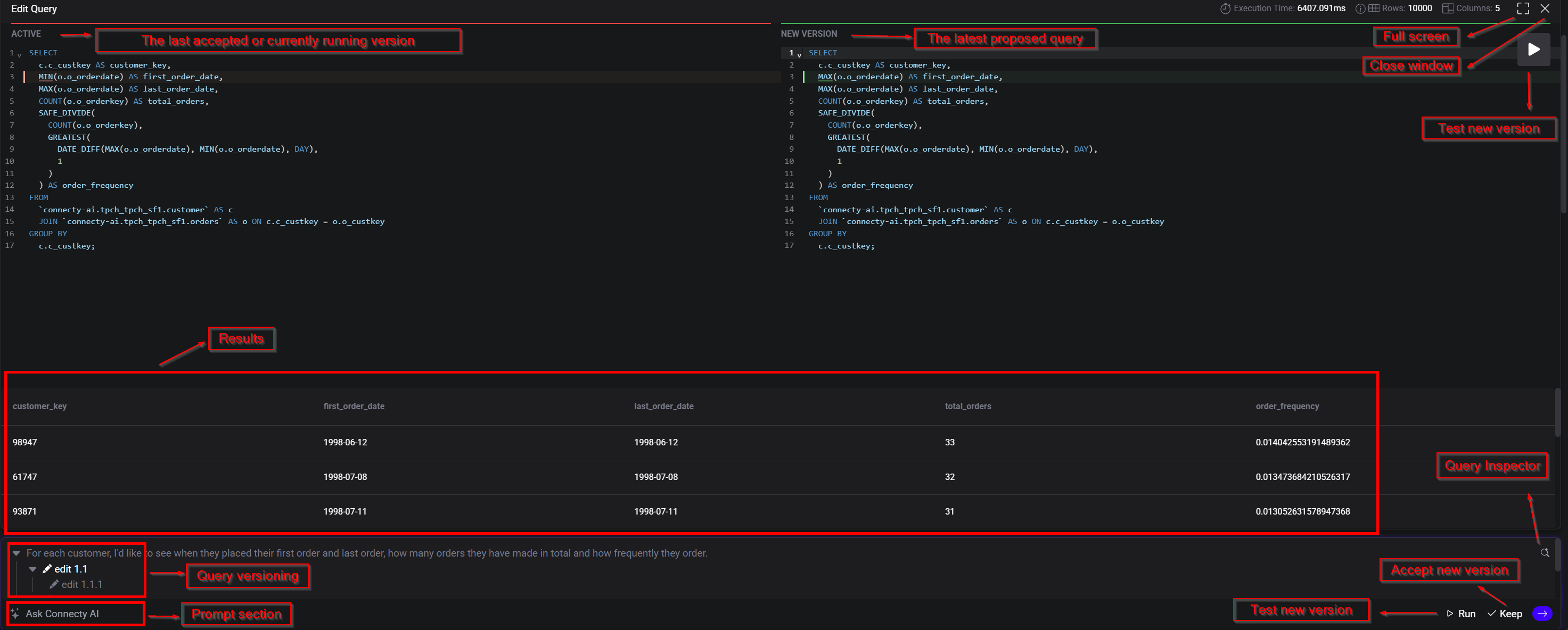
The AI Editor interface is organized into clearly defined sections to help users interpret, validate, and refine queries with ease. Each component plays a distinct role in the review and editing workflow:
#### Performance metadata panel
Located at the top of the interface, this panel displays key execution metrics such as:
* **Execution time** – how long the query took to run.
* **Rows returned** – total number of data records retrieved.
* **Column count** – number of fields in the result.
{% hint style="info" %}
Use this panel to quickly gauge whether your edits have improved performance (e.g., reduced execution time).
{% endhint %}
#### Active vs. New version panels
The core of the interface is a **side-by-side comparison**:
* **Active panel (left):** displays the last accepted or currently running SQL query version.
* **New Version Panel (right):** shows the latest proposed query, either AI-generated or user-edited.
{% hint style="info" %}
Use syntax highlighting to spot logic changes quickly.
{% endhint %}
#### Results section
Located below the query panels, this section presents a **tabular preview** of the data returned by the current query. It includes:
* Scrollable table view
* Column headers and row values
* Sorting and pagination instruments
It helps users validate if the query returns expected results before finalizing changes.
{% hint style="warning" %}
If results are empty, double-check filters and joins.
{% endhint %}
#### Prompt section
This is where users can interact with the AI using natural language. The input box allows users to:
* Request changes to the query (e.g., "Add a filter for only active users")
* Ask for query optimizations or different aggregations
The system will regenerate a new SQL query based on the prompt and display it in the “New Version” panel.
{% hint style="success" %}
Combine prompts with SQL knowledge for hybrid editing.
{% endhint %}
#### Controls
At the bottom and corner of the interface are key control buttons:
* **Run:** executes the query in the new version panel.
* **Keep:** accepts the new version and makes it the active one.
These controls help view and apply changes made via prompts or manual edits.
{% hint style="warning" %}
Don’t “Keep” until you’ve verified outputs via “Run.”
{% endhint %}
### 3. Edit options
The AI Editor in Connecty AI supports two primary ways to modify SQL queries: **manual edits** and **AI-assisted edits using prompts**. This flexibility allows both technical users who prefer hands-on SQL control and non-technical users who prefer natural language refinement to efficiently improve their queries.
#### Manual edits
Users can directly modify the SQL displayed in the **New Version** panel by clicking into the code editor.
**Key features:**
* Full syntax highlighting for readability
* Standard SQL formatting (e.g., line breaks, indentation)
* Immediate access to edit filters, joins, aggregations, or table references
**Best for:**
* Users with SQL knowledge
* Making small tweaks (e.g., changing a column name, adding a WHERE clause)
* Overriding incorrect AI interpretations
{% hint style="success" %}
Use manual editing when you know the exact change needed.
{% endhint %}
#### AI edits
Instead of editing SQL directly, users can enter instructions in the **Prompt** section using plain language. Connecty AI parses this prompt, interprets the intent, and updates the query in the New Version panel accordingly.
**Examples of possible prompts:**
* “Add a breakdown by region”
* “Filter to only show results from the last 6 months”
* “Sort by total revenue descending”
**Benefits:**
* No SQL knowledge needed
* More intuitive interaction model
* Ideal for iterative refinement
{% hint style="success" %}
Use AI editing to rephrase unclear prompts or to explore new approaches.
{% endhint %}
### 4. Query versioning
The AI Editor tracks all changes to queries through a structured versioning system. Each time a query is modified, either manually or through AI, a new version is generated and displayed in a navigable tree format. This allows users to trace the full history of modifications and compare results between versions.
**For a full breakdown of Query versioning functionality, refer to the dedicated article.**
### 5. Controls functionality
The AI Editor includes intuitive **control buttons** to manage query execution and version acceptance. These controls streamline the testing, validation, and finalization of SQL edits.
**▷ Run**
* Executes the **currently selected query version**.
* Can be used to test either a manually written query or an AI-suggested version.
* Re-runs the SQL and refreshes the output in the **Results** section below.
* Useful when you've edited a query but want to preview the output **before accepting** it as the official version.
{% hint style="success" %}
Use **Run** early and often during iteration to test assumptions.
{% endhint %}
**✔ Keep**
* **Accepts** the selected version as the official query.
* Once clicked, this version becomes the latest “committed” logic used for downstream reporting or further editing.
* Often used after validating that the AI-suggested or manual changes produce the desired results.
{% hint style="warning" %}
If unsure, leave multiple versions unaccepted and return later for comparison.
{% endhint %}
**Activation logic**
* Both buttons are **enabled only when a change or selection has been made**.
* For instance, "Run" may be disabled until the SQL is modified or a new version is selected.
* "Keep" appears when there is a **difference between the current active version and the one being previewed**, signaling the need to confirm or discard changes.
These controls give users full flexibility to test and adopt edits safely, making experimentation both reversible and trackable.